

SiriusXM


Features
Tour is a SiriusXM touchscreen Dock & Play radio that combines both satellite reception and Internet streaming ot deliver a full compliment of SiriusXM content. Incorporating SiriusXM with 360L and a touchscreen interface. Tour is the most complete and advanced entertainment experience ever offered by SiriusXM in an aftermarket radio. The SiriusXM Tour delivers an unparalleled variety of premium content and innovative features that make content navigation, discovery, personalization, and consumption easier than ever before.
Tour provides all of SiriusXM's broadcast channels via Satellite, or online via Internet streaming. Internet streaming adds additional SiriusXM content not available via satellite such as Xtra channels, listener created Personalized Stations Powered by Pandora, and On Demand content.
SiriusXM with 360L delivers the listener with personalized recommendations of content, curated just "For You" based on listening history, which "gets smarter" with more listening. Additionally, 360L adds "Related" Recommendations of other content which is related to the currently tuned channel.
In addition to the legacy audio connection options of Aux, Line Out, and FM, Tour offers Bluetooth audio capability for easily connecting the SiriusXM audio to a vehicle headunit or a home sound system or Bluetooth speaker.
Current accessories for other SiriusXM aftermarket radios are compatible with Tour, making it easy to upgrade. Add available accessories to take Tour anywhere:
- Home or in the office with Home Dock (SXDH4)
- Outdoors with our Speaker Dock (SXSD2)
- Another vehicle with an additional Vehicle Dock (SXDV3)
To receive all the content that Tour is capable of delivering. Tour needs to be connected to a satellite antenna to receive satellite channels, and to a Wi-Fi hotspot or Wi-Fi network with Internet access for Internet streaming content. Please note that data rates may apply for Internet streaming when utilizing a Wi-Fi hotspot. You are responsible for any carrier, data and other related fees or charges that may be incurred from your carrier or service provider.
Introduction
Safety and Care Information

Warning!

What's in the Box?

Tour Button Functions

PowerConnect Vehicle Dock
Color-Coded Connections

Wire Guide


Step 1: Choose a Location for Your Radio

Step 2: Install the Dash or Vent Mount


Step 3: Mount the Magnetic Mount Antenna


Step 4: Route the Antenna Cable


Step 5: Connect the Magnetic Mount Antenna and PowerConnect Power Adapter

Step 6: Run the Tour Setup Guide


Connecting Tour to the Internet

Connecting Tour to a WI-FI Hotspot or a WI-FI Router


Establishing WI-FI Hotspot

Establishing an iOS Wi-Wi Hotspot

Establishing an Android Wi-Fi Hotspot

Tour Authorization

User Interface & Navigation
Introduction

The Satellite and Internet Streaming Channels Now Playing Screen


The Sports Play-by-Play Now Playing Screen


Xtra Channel Now Playing Screen

On Demand Now Playing Screen

Personalized Stations Powered by Pandora Now Playing Screen

Tuning Content
Introduction

Tuning Channels Using the Channel Previous/Next Buttons

Voice Tuning and Search

Voice Tuning a Channel or Pandora Station


Voice Tuning an On Demand Show Episode

Voice Searches

Voice Category Search

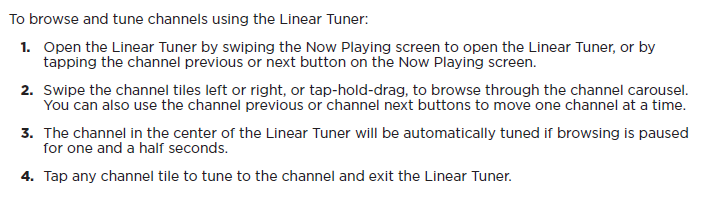
Tuning Channels Using the Linear Tuner

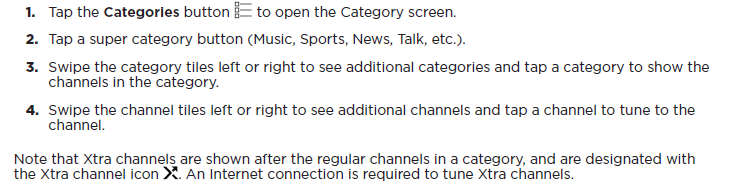
Category Tuning

Channel and On Demand Category Screens


Tuning a Channel from Categories
Tuning an On Demand Episode from Categories

Tuning Channels Using Direct Tune


Tuning Live Sports Games

Tuning Related Content

Tuning For You Content

Switch to Internet/Switch to Satellite Button

Start Over Button

Personalized Stations Powered by Pandora
Introduction

Crating a Pandora Station


Tuning a Pandora Station

Deleting a Pandora Station

Jump

Favorites
Introduction

Saving and Removing Favorites

Save or Remove a Favorite in Favorites


Save or Remove a Favorite from the Now Playing Screen

Save or Remove a Favorite in the Linear Tuner

Save or Remove a Favorite in Category Lists

Save or Remove a Favorite in Direct Tune

Tuning Favorites

Reordering Favorites


Pause and Replay

Song and Artist Alerts

Saving a Song or Artist Alert


Tuning a Song or Artist Alert

Enabling or Disabling a Song or Artist for Alerts

Deleting a Song or Artist Alert
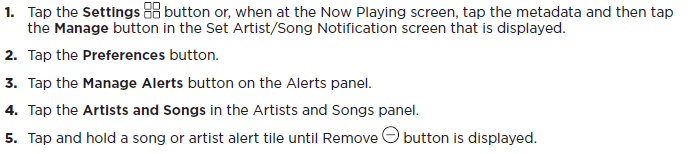

Enabling and Disabling All Song and Artist Alerts

Sports Alerts
Introduction

Selecting Sports Teams for Alerts

Tuning a Sports Game Alert

Deleting a Sports Team

Enabling and Disabling an Individual Team for Sports Alerts

Enabling or Disabling All Sports Team Alerts

Additional Features
Audio

Block Explicit

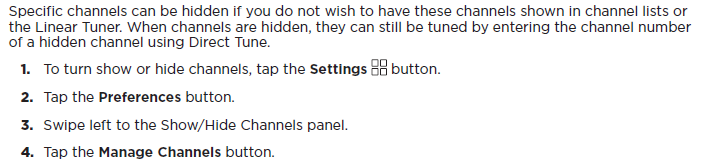
Show and Hide Channels

Metadata Scrolling

Listener Preferences

Audio

Alerts

Block Explicit

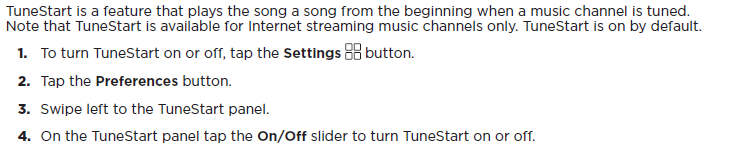
TuneStart
Show/Hide Channels

Preferences
Scrolling

Reset Recommendations

System Settings

Device Information

Setup Guide

Audio

Audio Level


Bluetooth Audio Settings

Tuning Bluetooth On/Off

Pairing Tour with a Bluetooth Device

To Pair Tour with a Bluetooth Device using Tour


To Pair Tour with a Bluetooth Device using the Bluetooth Device


Forgetting a Paired Bluetooth Device

FM Audio Settings (Vehicle Dock only)

Connecting the Tour Audio to a Vehicle Radio Using FM


Tuning FM On/Off

Adding an FM Channel Preset


Turning an FM Channel Preset

Deleting an FM Channel Preset


Wi-Fi Connection
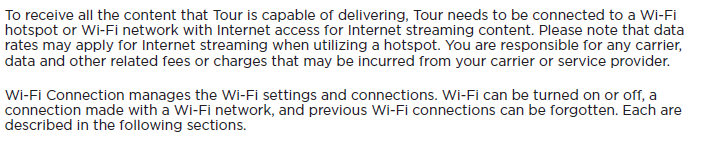
Turning WI-FI On and Off

Connecting to a WI-FI Network

Connect to a Wi-Fi Network Automatically (Scan)

Connect to a Wi-Fi Network Manually (Manual)


Forget a WI-FI Network


Brightness

System Settings
Software Update


Auto Shut Off (Vehicle Dock only)

Signal Indicator

Factory Setting

Demo Mode

Troubleshooting


Specifications

FCC & IC Statements

Important Information
Patent Information

Environmental Information

Data and Subscription Information

Copyright Information
